> ## Documentation Index
> Fetch the complete documentation index at: https://elementary-more-explicit-webhook-instructions.mintlify.site/llms.txt
> Use this file to discover all available pages before exploring further.
# Enable Slack alerts
## About Slack alerts
## Setup Slack Integration
First create a Slack app:
## 1. Create a Slack app
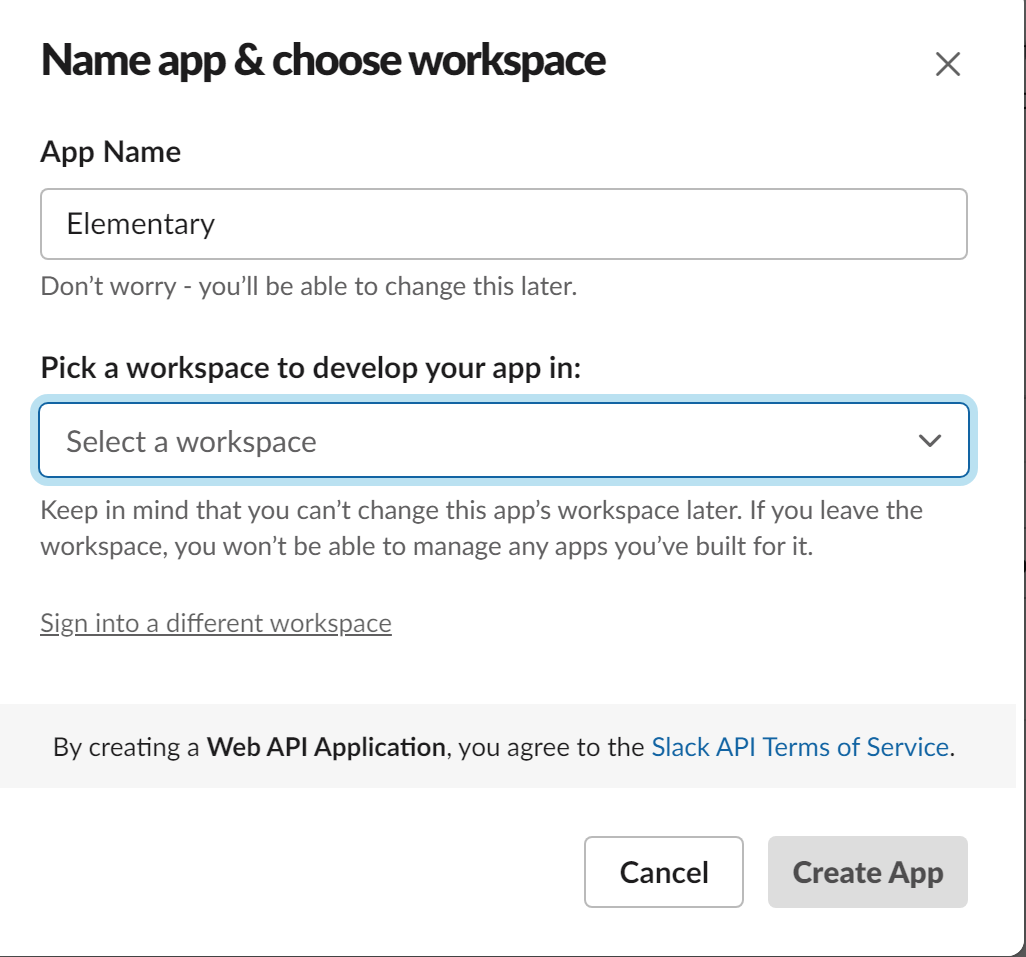
Go to the [Slack page to create apps](https://api.slack.com/apps?new_app=1) and create a new app (from scratch).
Call it "[Elementary](#slack-app-display)" and connect it to the workspace of your choice.
 ## 2. Optional - Slack app display
To change the display of the Elementary slack app, scroll down on the Slack app basic information page to the 'Display Information' section:
## 2. Optional - Slack app display
To change the display of the Elementary slack app, scroll down on the Slack app basic information page to the 'Display Information' section:
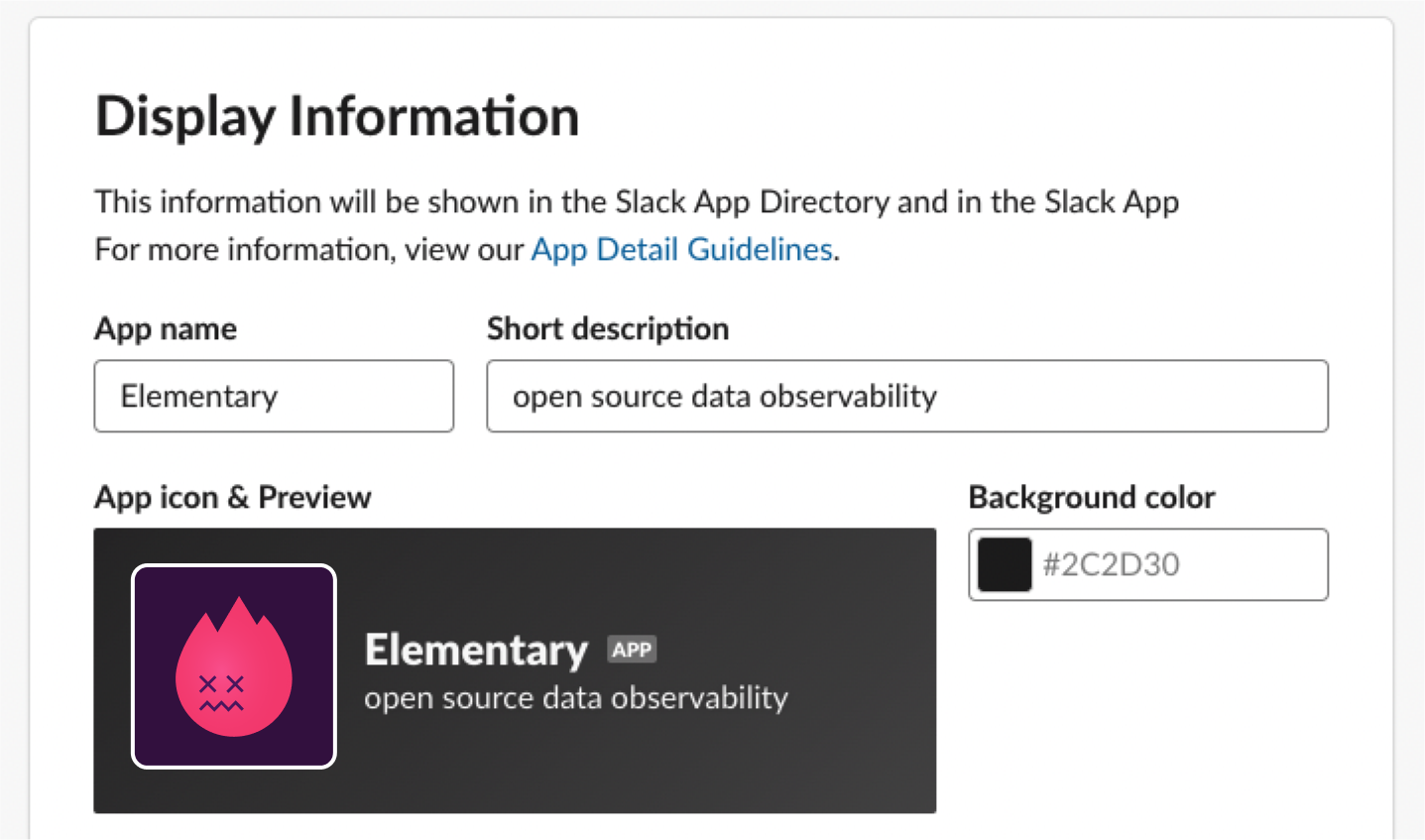 Here is the Elementary icon for your use (click to download):
 After the app is ready, create a Slack Token:
## 1. Create a Slack token
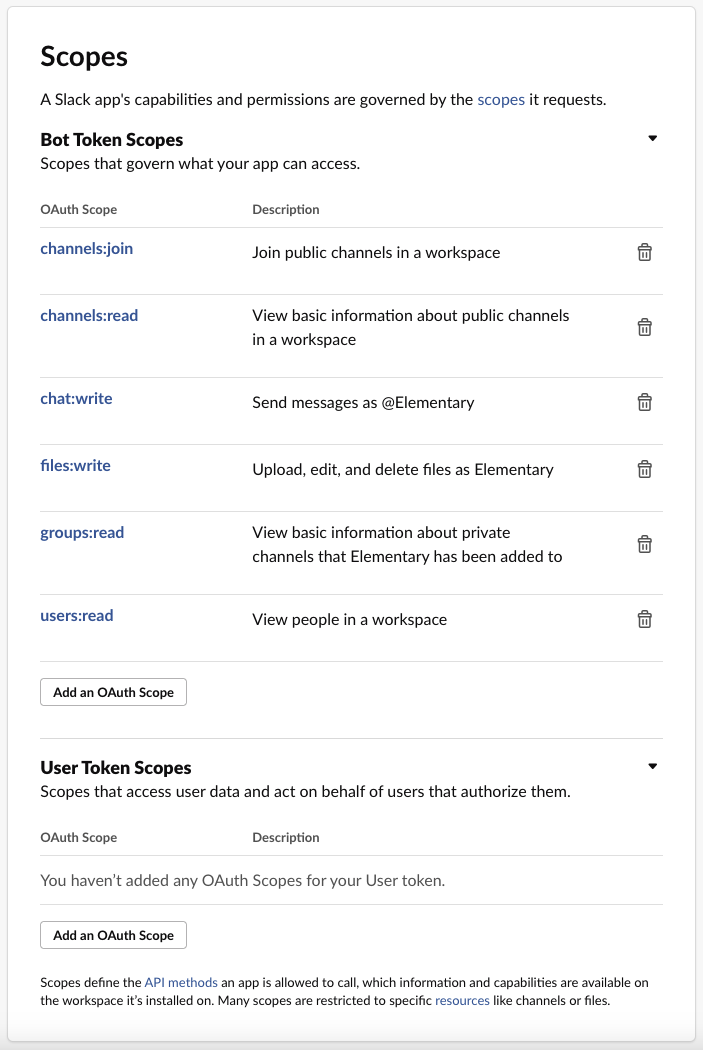
Go to the "OAauth & Permissions" page for your newly-created app, and add the following scopes under "Bot Token Scopes":
* `channels:join` - Join public channels in a workspace
* `channels:read` - View basic information about public channels in a workspace
* `chat:write` - Send messages as \
* `files:write` - Upload, edit, and delete files as \
* `users:read` - View people in a workspace
* `users:read.email` - View email addresses of people in a workspace
* `groups:read` - View basic information about private channels that your slack app has been added to
After the app is ready, create a Slack Token:
## 1. Create a Slack token
Go to the "OAauth & Permissions" page for your newly-created app, and add the following scopes under "Bot Token Scopes":
* `channels:join` - Join public channels in a workspace
* `channels:read` - View basic information about public channels in a workspace
* `chat:write` - Send messages as \
* `files:write` - Upload, edit, and delete files as \
* `users:read` - View people in a workspace
* `users:read.email` - View email addresses of people in a workspace
* `groups:read` - View basic information about private channels that your slack app has been added to
 ## 2. Install app at your Workspace
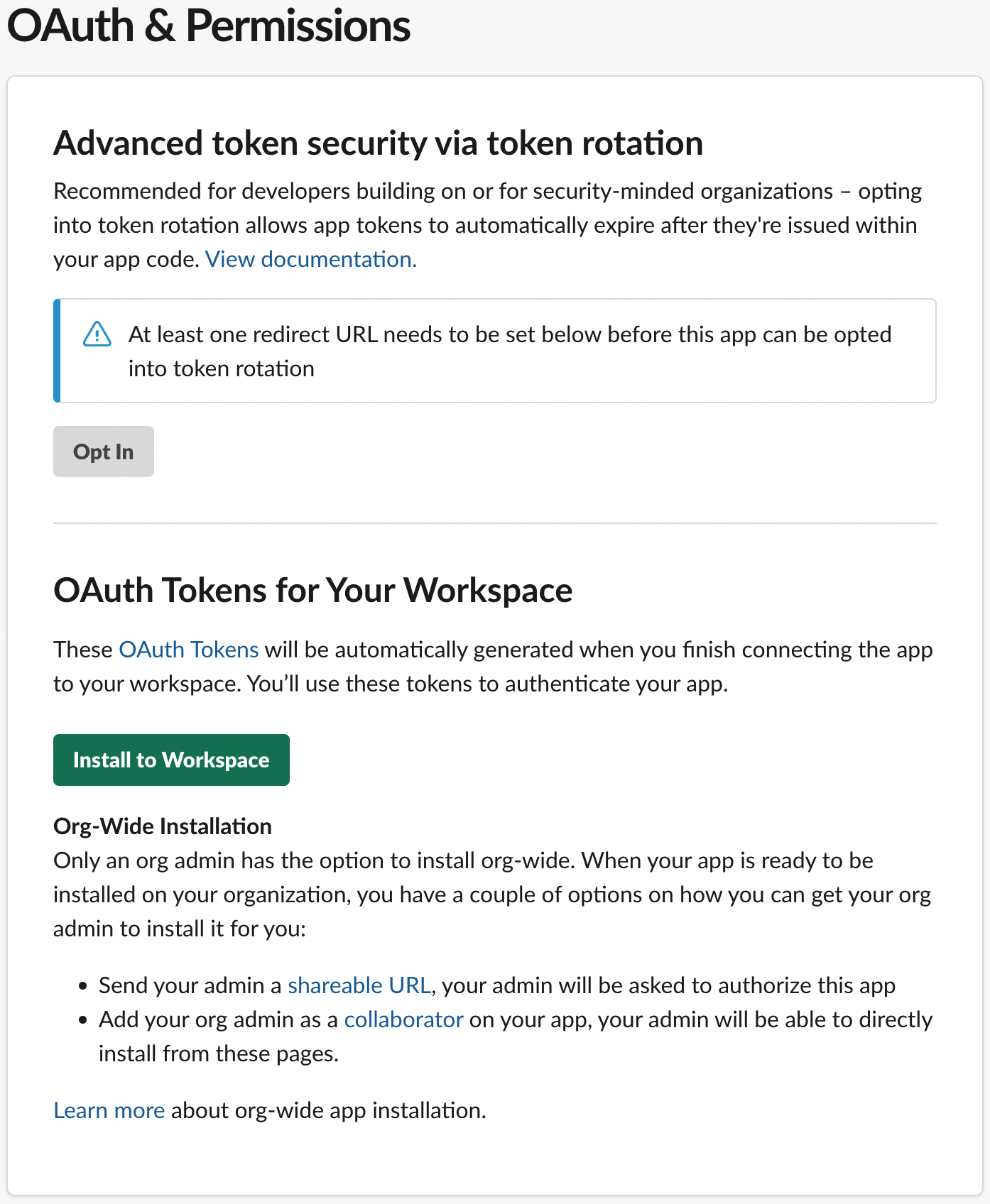
At the "OAuth & Permissions" page, press on "Install to Workspace" in order to generate Slack token:
## 2. Install app at your Workspace
At the "OAuth & Permissions" page, press on "Install to Workspace" in order to generate Slack token:
 On the environment configuration in Elementary Cloud, add the Slack token and configure a default channel.
